
Logitech MX Master 4 Review: Best Wireless Mouse for Digital Artists 2025
Haptic feedback meets precision control in this digital artist's dream mouse. Our in-depth review reveals why the MX Master 4 dominates creative workflows.

Jamie Patel
Digital Artist & Peripheral Enthusiast
14 min read
Pros and Cons
Pros
- ✓Haptic feedback adds tangible precision to repetitive creative tasks
- ✓Actions Ring dramatically speeds up workflow in apps like Photoshop and Premiere Pro
- ✓Exceptional ergonomics with refined, durable hard plastic finish
- ✓Incredibly smooth tracking across all surfaces with 8,000 DPI sensor
- ✓70-day battery life means you'll charge it maybe 5 times a year
Cons
- ✗250 Hz polling rate feels dated compared to modern mice
- ✗Heavier at 150g than previous models (9g increase)
- ✗Haptic feedback currently limited to specific apps (Photoshop, Lightroom, Zoom, upcoming Premiere Pro)
I'll be honest with you: I didn't think Logitech could improve on the MX Master 3S. I've been using that mouse daily for two years, and it's become such an extension of my hand that I barely think about it anymore. So when Logitech sent me the MX Master 4 to test, I was skeptical. How much better could a mouse really get?
Turns out, quite a bit better. I've been using the MX Master 4 as my daily driver for six weeks now, putting it through intense Photoshop sessions, vector illustration marathons, and countless hours of photo editing. The headline features (haptic feedback and the Actions Ring) aren't gimmicks. They genuinely change how you work. Let me explain why this might be the best wireless mouse for digital artists and creative professionals in 2025.
Design and Build Quality: Refined for the Long Haul
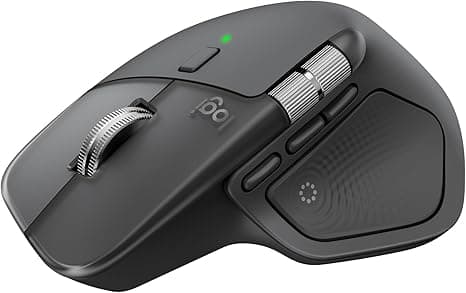
At first glance, the MX Master 4 looks nearly identical to its predecessor. Same iconic thumb-sculpted shape, same general button layout, same commanding presence on your desk. But pick it up, and you'll immediately notice the differences.
Logitech swapped the soft-touch rubberized coating for a smooth, hard plastic finish. This might sound like a downgrade, but trust me, it's not. That soft coating on the MX Master 3S? It discolors over time from hand oils, gets sticky in humid environments, and can develop a worn look after heavy use. The new hard plastic stays pristine, resists fingerprints better, and just feels more premium. There's still soft-touch material on the right side grip and thumb rest where your skin makes the most contact, so comfort hasn't been sacrificed.
The mouse weighs 150 grams, 9 grams heavier than the 3S. In practice, I barely notice the difference. The weight is distributed well, and the mouse glides effortlessly across my wooden desk (I don't use a mousepad). Three large PTFE glide pads on the bottom ensure smooth movement regardless of surface.
Button feel has improved too. The left and right clicks are noticeably quieter (Logitech claims 90% quieter than the MX Master 3), which is perfect for shared workspaces or late-night editing sessions. The clicks feel crisp and precise without that hollow plastic sound some mice have.
 Caption: The new hard plastic finish resists fingerprints and maintains its premium look over time
Performance: Haptics and Actions Ring Change Everything
Here's where the MX Master 4 gets interesting. Logitech added two major features that fundamentally change how you interact with creative applications: haptic feedback and the Actions Ring.
Haptic Feedback: Precision You Can Feel
The small haptic panel built into the thumb rest delivers subtle vibrations for specific actions. It sounds gimmicky until you actually use it. When I'm in Photoshop and snap an element to a guide, I get a quick haptic tap. When I switch between devices, another tap. When I'm adjusting opacity sliders or color values, there's gentle feedback that helps me dial in precise values without constantly looking at the screen.
The default intensity is perfect (you can adjust it in Logi Options+ or turn it off entirely). It's strong enough to feel but never intrusive or distracting. Currently, haptic feedback works in Photoshop, Lightroom, and Zoom, with Premiere Pro support coming soon. Logitech says they'll expand support through plugins, but even with limited app support, it adds real value to my daily workflow.
The haptics aren't just for notifications. In Photoshop, I feel feedback when objects snap to grids or guides, when layers lock, when I hit certain tool presets. It's like having a tiny assistant confirming your actions without breaking your focus. After six weeks, I notice its absence when I switch to a mouse without haptics.
Actions Ring: Your Workflow Command Center
The new button on the thumb rest activates the Actions Ring, which is harder to explain but brilliant in practice. Press the button, and a circular overlay appears on your screen with eight app-specific shortcuts arranged in a ring pattern. Move your mouse in any direction, and the corresponding shortcut highlights and executes.
In Photoshop, I've configured mine for my most-used adjustments: brightness/contrast, hue/saturation, curves, levels, and various blend modes. In Illustrator, it's pathfinder tools and alignment options. In Premiere Pro, it's my timeline controls and effects. The beauty is that this ring appears at your cursor position, so you're not constantly traveling to toolbars or hunting through menus.
Logitech claims this reduces mouse movement by up to 63% and saves 33% of work time. Those numbers feel optimistic, but I definitely work faster. Tasks that used to require traveling to the top menu bar, clicking through dropdown menus, and then returning to my canvas now happen in one motion. No exaggeration, the Actions Ring has become muscle memory after just two weeks. I find myself pressing that button instinctively now.
You configure the Actions Ring through Logi Options+, and you can create profiles for different apps. You can even add AI shortcuts to tools like ChatGPT or Gemini, though I haven't explored that much yet. One caveat: the Logi Options+ app needs to be running for the Actions Ring to work, which means another background process on your system.
Ergonomics and Comfort: Still the Champion
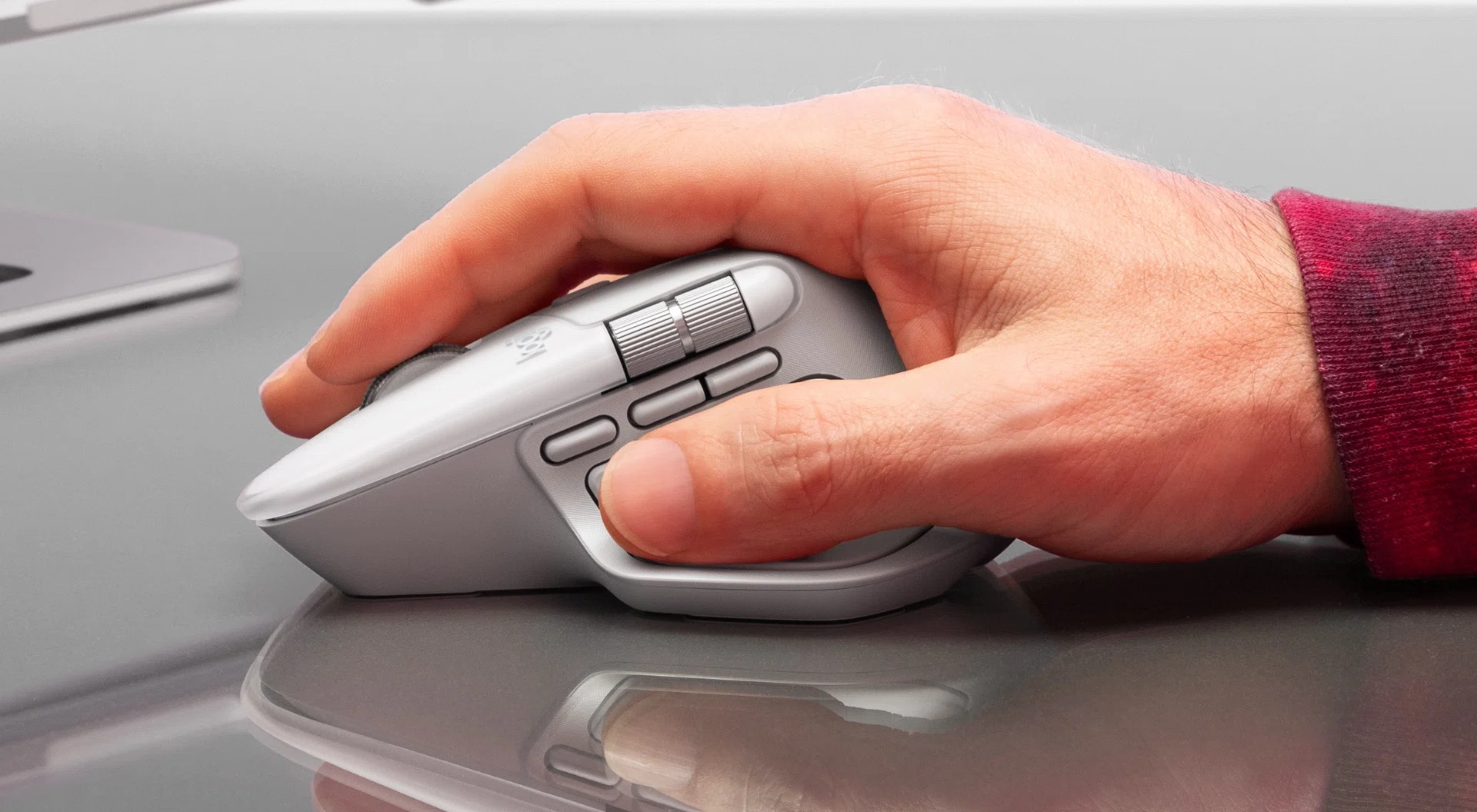
If you've used any MX Master mouse, you know the ergonomics are exceptional. The MX Master 4 maintains that same sculpted shape that perfectly fits right-handed users with medium to large hands. My hand falls naturally into position, with my thumb resting on the side, my ring and pinky fingers gripping the right side, and my index and middle fingers draped comfortably over the buttons.
I typically work 8-10 hour days at my computer, and I've never experienced hand fatigue or discomfort with this mouse. The thumb rest is positioned perfectly, with a slight curve that cradles your thumb without forcing an awkward angle. The smooth finish doesn't create friction or hotspots during long sessions.
One ergonomic improvement: Logitech moved the horizontal scroll wheel button up by a few millimeters. This might seem minor, but it makes horizontal scrolling in Excel timelines and Premiere Pro much more comfortable. My thumb naturally finds that wheel now without the slight stretch required on previous models.
The MX Master 4 works beautifully with our recommended ergonomic keyboard setups, creating a complete workspace solution that prioritizes long-term comfort. If you're serious about avoiding repetitive strain injuries, this mouse is part of that equation.
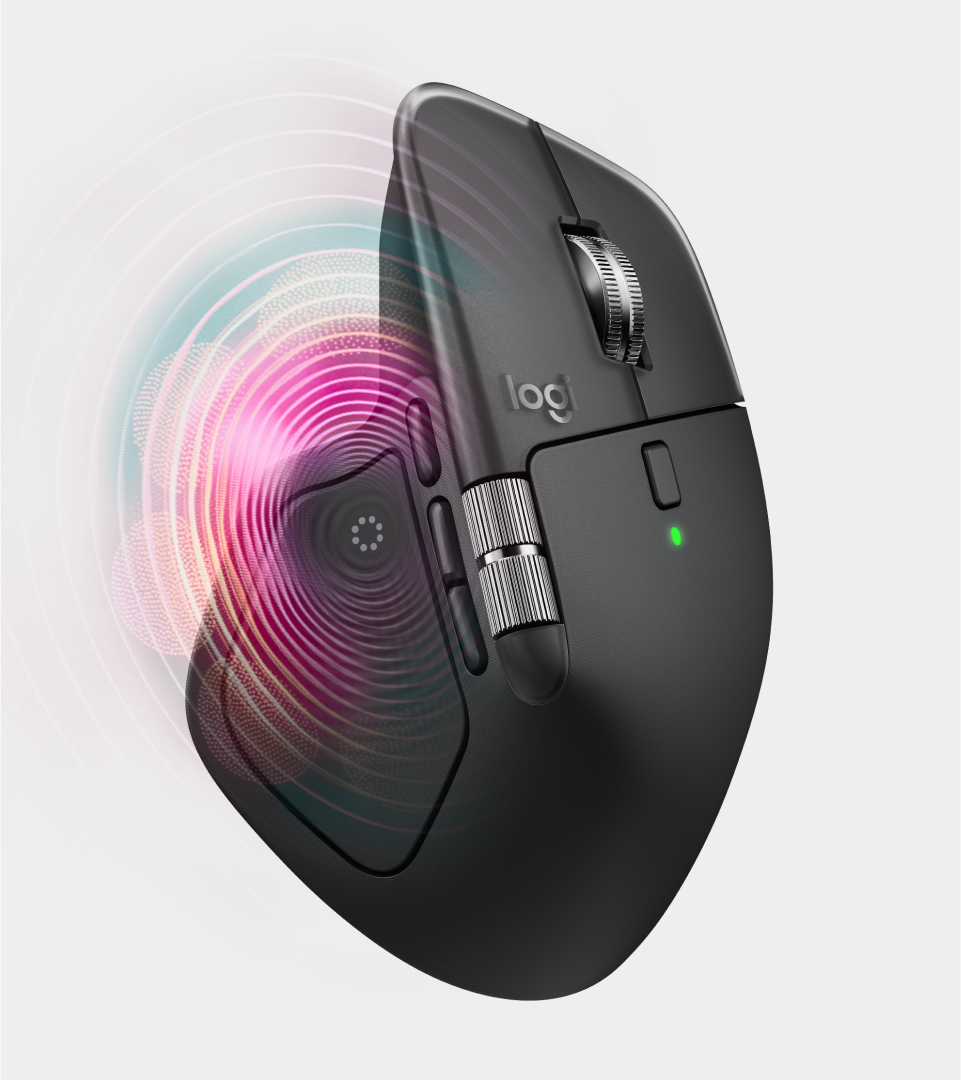 Caption: The sculpted design and repositioned horizontal scroll wheel reduce hand strain during marathon work sessions
Features Deep Dive: The Details That Matter
MagSpeed Electromagnetic Scroll Wheel
The scroll wheel deserves special attention. It's the same MagSpeed system from previous models, and it remains incredible. You can scroll in two modes: ratcheted (where you feel each individual line) or free-spin (where the wheel spins almost indefinitely with a single flick).
I keep mine in free-spin mode 99% of the time. When I need to scroll through a 500-layer Photoshop file or fly through reference images, I flick the wheel and it just glides. The wheel can move 1,000 lines per second, which sounds excessive until you're navigating large documents. A button below the wheel toggles between modes, though I rarely use it.
The wheel is made from low-carbon aluminum, has a satisfying weight to it, and the grooved texture gives perfect grip. It's also quieter than previous models, with less mechanical noise during rapid scrolling.
8,000 DPI Sensor with Universal Tracking
The MX Master 4 uses an 8,000 DPI sensor that tracks flawlessly on virtually any surface. I've used it on wood, glass, fabric, and even my leather desk pad. It never skips or loses tracking. For detailed illustration work where I'm zooming in 400-800%, that precision is critical.
You can adjust DPI in Logi Options+, though I keep mine at the default. Some users on forums have mentioned they'd prefer 10,000+ DPI for ultra-high-resolution work, but honestly, 8,000 DPI has been more than sufficient for my 4K monitor setup. If you're working on multiple 4K or 5K displays, you might want higher sensitivity, but for most creative workflows, this sensor excels.
Connectivity: Twice as Strong
Logitech upgraded the wireless chip and antenna placement, claiming 2X stronger connectivity than previous generations. In practical terms, this means more reliable connections and faster response times.
The mouse supports Bluetooth and can pair with up to three devices simultaneously. You can switch between devices using either the Easy-Switch buttons on the bottom or (better yet) through the Actions Ring on-screen. I have mine paired to my main desktop, my MacBook Pro, and my iPad Pro. Switching is instant and seamless.
The Windows version includes a USB-C Logi Bolt receiver for lower-latency connections. The Mac version (which I'm testing) is Bluetooth-only but still feels perfectly responsive for creative work. One note: the polling rate is 250 Hz, which is low by modern standards. Gaming mice often run at 1,000 Hz or higher. For creative work, 250 Hz is fine, but if you occasionally game or want absolute lowest latency, this might bother you.
Battery Life and Charging
Logitech claims up to 70 days of battery life on a full charge, and from my testing, that seems accurate. I've been using this mouse heavily for six weeks and I'm still at 40% battery. The 650 mAh rechargeable battery charges via USB-C, and fast charging is impressive: one minute of charging gives you three hours of use.
The charging LED moved from the side to the top of the mouse, making it easier to see at a glance. Logitech didn't include a USB-C cable in the box (cost-cutting measure), but you likely have plenty lying around. I appreciate that I charge this mouse maybe five or six times per year. It's basically wireless in the truest sense.
 Caption: Three devices, instant switching - the Easy-Switch system makes multi-device workflows seamless
Software: Logi Options+ Makes It Work
The MX Master 4's advanced features require the Logi Options+ app, available for Windows and macOS. The app is well-designed and lets you customize everything: button assignments, DPI settings, scroll behavior, haptic intensity, and Actions Ring configurations.
You can create app-specific profiles, so your button assignments automatically change when you switch from Photoshop to your browser. You can set up Smart Actions (macros) to automate repetitive tasks. You can download plugins for third-party app support.
The app works reliably, but it does need to run in the background for features like the Actions Ring to function. On my Mac, it uses about 100MB of RAM, which is negligible on modern systems but worth noting. Setup is straightforward, and the interface is intuitive enough that I didn't need to reference any documentation.
One feature I love: Logitech Flow lets you seamlessly move your cursor between multiple computers and even copy/paste across devices. If you work on a desktop and laptop simultaneously, this is game-changing. I regularly drag files from my Mac to my PC just by moving the mouse to the edge of the screen.
Who Should Buy the Logitech MX Master 4?
Perfect For:
- Digital artists and illustrators who need precise control and spend hours in Photoshop, Illustrator, or similar apps
- Video editors who want faster access to timeline controls and effects (especially once Premiere Pro haptic support launches)
- Photographers who process hundreds of images and benefit from the Actions Ring shortcuts in Lightroom
- Designers working in Figma, Sketch, or Adobe XD who value efficiency and precision
- Multi-device users who need to seamlessly switch between desktop, laptop, and tablet
- Anyone upgrading from an older mouse who wants the best ergonomic productivity mouse available
Not Ideal For:
- Gamers (the 250 Hz polling rate and 150g weight aren't optimized for competitive gaming. Check out our best gaming mice guide instead)
- Left-handed users (this mouse is specifically designed for right-handed ergonomics)
- Budget-conscious buyers (at $119.99, there are cheaper options if you don't need the advanced features)
- People who prefer lightweight mice (150g is substantial compared to modern ultralight gaming mice)
If you're a creative professional who lives in apps like Photoshop, Premiere, or Lightroom, this mouse will genuinely make you faster and more efficient. The haptic feedback and Actions Ring aren't just novelties; they're workflow improvements that add up over thousands of daily actions. Combined with best-in-class ergonomics and reliable connectivity, the MX Master 4 earns its premium price.
For casual users who primarily browse the web and use basic productivity apps, the Logitech MX Master 3S is still excellent and often available at a discount now. You'll miss the haptics and Actions Ring, but you'll save some money.
Alternatives to Consider
Logitech MX Master 3S ($99 on sale)
If you don't need haptic feedback or the Actions Ring, the MX Master 3S is nearly identical in shape and ergonomics. It has the same MagSpeed wheel, similar connectivity, and great battery life. You can even add Actions Ring functionality by mapping it to an existing button through Logi Options+, though you won't get haptics. Choose this if you want to save $20-30 and don't mind missing the newest features.
Logitech MX Vertical ($99.99)
For users experiencing wrist pain or carpal tunnel issues, the MX Vertical offers a drastically different ergonomic approach with its vertical orientation. It reduces forearm strain by 10% according to Logitech studies. The trade-off is less precision for detailed creative work. Choose this if ergonomics trump all other concerns, but be aware the buttons are reportedly less durable.
Logitech MX Anywhere 3S ($79.99)
Need portability? The MX Anywhere 3S packs many of the same features into a compact form factor perfect for travel. It's significantly smaller and lighter (99g), tracks on glass, and fits in laptop bags easily. Choose this if you're frequently on the go, but know that smaller size means less ergonomic support for all-day use.
If you're also optimizing your whole workspace, check out our complete ergonomic desk setup guide for recommendations on chairs, monitor arms, and accessories that pair perfectly with the MX Master 4.
Final Thoughts: Worth Every Penny for Creatives
After six weeks of daily use, the Logitech MX Master 4 has completely won me over. I went in skeptical that haptic feedback and the Actions Ring would make a real difference, but they absolutely do. When I switch back to my old MX Master 3S for testing, I immediately miss those features. That thumb button has become such an integral part of my workflow that I catch myself reaching for it on other mice.
Is it perfect? No. The 250 Hz polling rate feels outdated in 2025, and at 150 grams, it's heavier than I'd prefer. The haptic feedback is currently limited to a handful of apps, though Logitech promises to expand support. And at $119.99, it's definitely a premium-priced mouse.
But here's the thing: if you're a digital artist, video editor, photographer, or designer who spends 40+ hours a week using creative applications, this mouse pays for itself quickly through improved efficiency. Those extra seconds saved per action add up to minutes per day, hours per week. The ergonomics mean you can work longer without discomfort. The precision means fewer mistakes and adjustments.
The MX Master 4 isn't just an incremental upgrade. It's Logitech rethinking how we interact with creative software through tactile feedback and intelligent shortcuts. For anyone serious about their craft, this is the wireless mouse to beat in 2025.
Rating Breakdown:
- Comfort (5/5): Best-in-class ergonomics with refined materials and perfect hand fit
- Quality (5/5): Premium build, durable hard plastic finish, and reliable components
- Value (4.5/5): Premium price justified by features, though not budget-friendly
- Design (4.5/5): Refined aesthetics with functional improvements, though evolutionary rather than revolutionary
- Performance (5/5): Exceptional tracking, smart features, and workflow-transforming capabilities
Check current price and availability on Amazon through our affiliate link above. If you pick one up, let me know how the Actions Ring transforms your workflow. I'm genuinely curious how other creatives customize theirs for different apps.
For more mouse reviews and peripheral recommendations, check out our complete mouse buying guide or explore our top ergonomic mice for developers if you're more code than canvas.
Specifications
- Sensor
- 8,000 DPI (tracks on any surface including glass)
- Weight
- 150 grams
- Dimensions
- 128.2mm (H) x 88.4mm (W) x 50.8mm (D)
- Battery
- 650 mAh rechargeable (up to 70 days)
- Connectivity
- Bluetooth, USB-C Logi Bolt receiver (Windows version only)
- Buttons
- 8 programmable buttons including Actions Ring button
- Polling Rate
- 250 Hz
- Compatibility
- Windows, macOS, Linux, ChromeOS, iPadOS, Android
- Colors
- Graphite, Pale Grey, Space Black (Mac), White Silver (Mac)
Our Verdict
The MX Master 4 sets a new standard for creative productivity mice with its innovative haptic feedback and Actions Ring features. While the 250 Hz polling rate won't satisfy gamers, digital artists, video editors, and designers will find this mouse transforms their workflow. At $119.99, it's an investment that pays dividends through faster, more intuitive work.
Where to Buy
Get the best price on the Logitech MX Master 4
Check Price on Amazon →We may earn a commission when you buy through our links at no extra cost to you.
Get the Best Ergonomic Reviews
Join content creators, developers, and streamers who receive our weekly newsletter with in-depth reviews, setup guides, and ergonomic tips.